

Why Is My Xbox Controller Blinking Mid-Game?
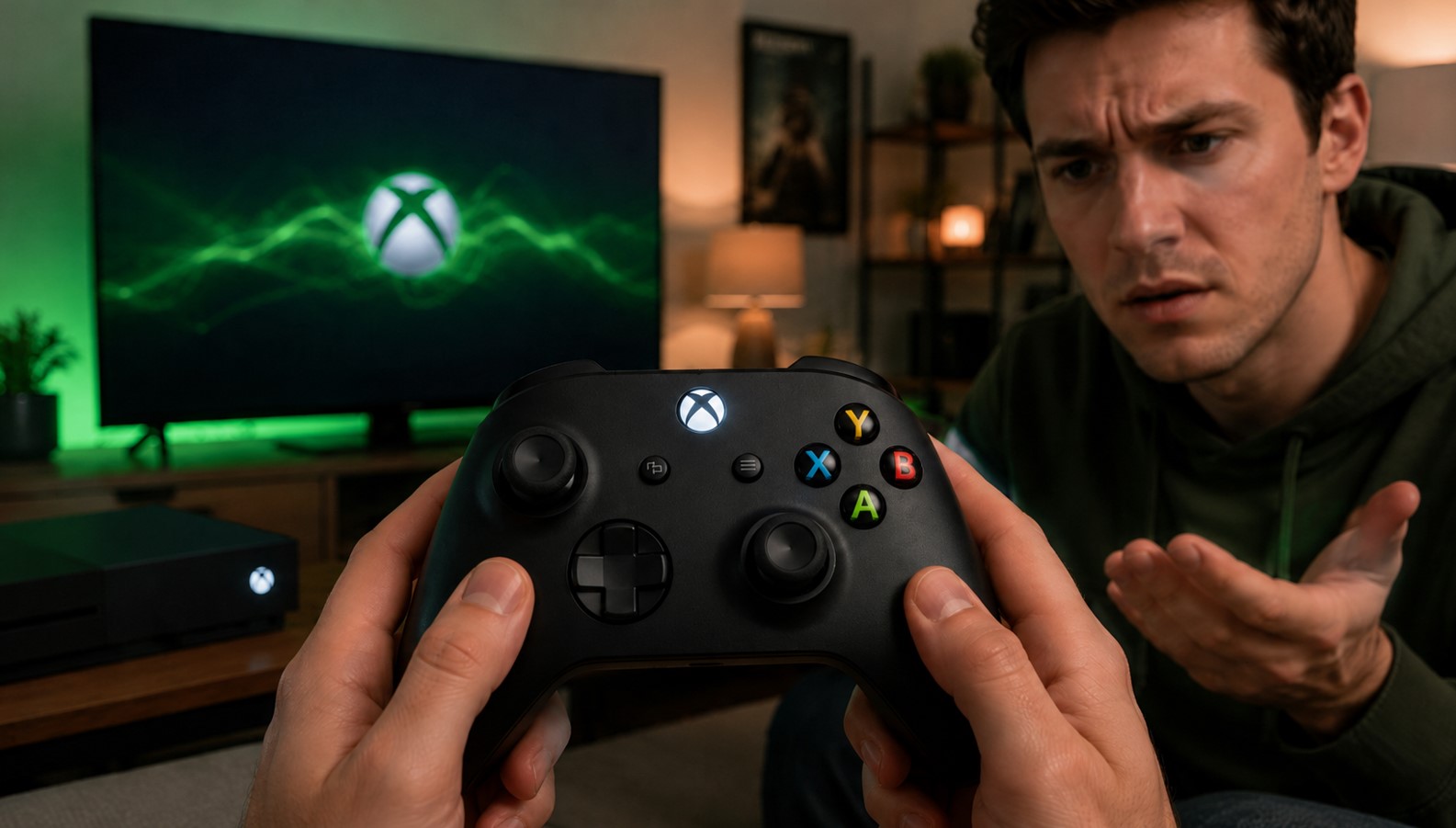
You’re deep in a match. Clutch moment. And then – blink, blink, blink – that little Xbox button on your controller starts flashing, and suddenly your character won’t move. Rage-inducing, right? Take a breath. If you are asking yourself – why is my Xbox controller blinking – you’re not alone, and your controller probably isn’t dead. That blinking light is actually your controller trying to tell you something. It’s not random. Different flash patterns mean different things, and once you learn to read them, the fix is usually quick. So let me walk you through what’s going on and how to sort it out – no throwing your controller at the wall required.
Because here’s the good news: a blinking Xbox controller almost never means it’s broken. Most of the time it’s a simple connection or battery hiccup.
What Does the Blinking Actually Mean?
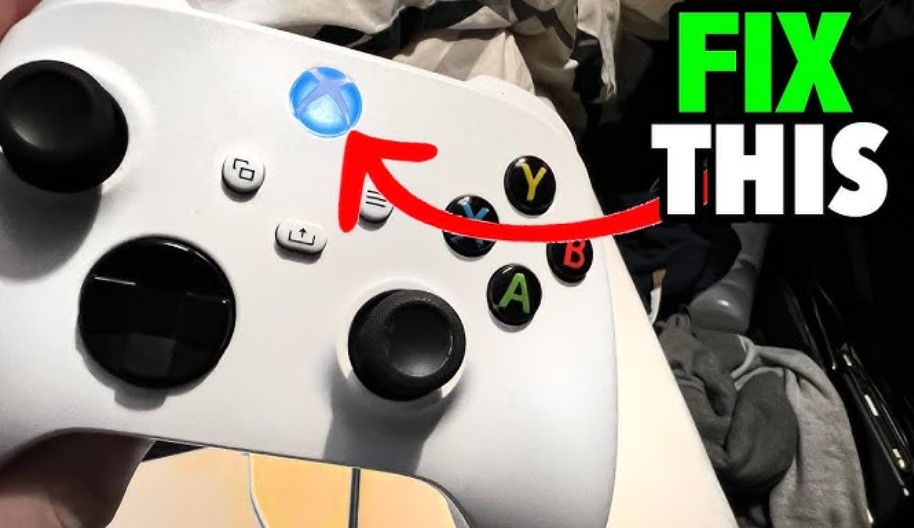
First things first. That flashing Xbox button is basically your controller shouting into the void, hoping something answers. It’s searching for a device to connect to. But the speed of the blink tells you a lot.
Here’s the quick decoder:
- Slow, steady blink – the controller is on but can’t find or reach its paired console or PC. Usually a connection drop.
- Rapid, fast blink – the controller is in pairing mode, actively waiting for a device to sync with.
- Flashes then powers off – battery trouble, either drained, inserted wrong, or a rechargeable pack that isn’t charging.
- Intermittent blinking mid-game – wireless interference, range issues, or a weakening battery interrupting the signal.
That last one is the classic “why is my Xbox controller blinking during a match” scenario. As one longtime Steam user put it, that mid-game blink usually means it’s losing wireless connection and trying to reconnect. Annoying, but fixable.
Knowing your pattern saves you time. No point swapping batteries if the real issue is a lost pairing.
Why Is My Xbox Controller Blinking? Start With the Battery
Let’s start with the most common culprit, because it’s the one people overlook most. Batteries.
A weak or dying battery is hands-down the top cause of a flashing controller. If yours does a slow blink or flashes and then shuts off, this is your first suspect. And here’s a detail a lot of folks miss – those degraded rechargeable packs often start failing after two or three years of use. If your controller’s been around a while, the battery pack might just be tired.
Try this:
- Pop in a fresh set of AA batteries (or a fully charged pack) and see if the blinking stops.
- If you’re using rechargeables, make sure they’re actually charged – they don’t recharge inside the controller unless you’ve got a Play and Charge setup.
- Still blinking? Plug in via USB cable, which both powers the controller and helps rule out battery issues entirely.
If a wired connection makes everything stable again, you’ve basically confirmed it was a wireless or power gremlin. Easy win.
Re-Syncing: The Fix That Solves Most Cases
Okay, battery’s good but it’s still blinking? Time to re-sync. This is the big one – community folks and repair guides estimate re-syncing fixes something like 70% of blinking issues within minutes. It’s worth doing carefully and in order.
Here’s the classic re-pair dance:
- Turn on your Xbox and let it fully reach the Home screen.
- Press the Xbox button on your controller (it’ll blink since it’s not connected).
- Press and release the Pair button on the console – on Series X it’s near the USB port, on Series S it’s on the front, and on Xbox One it varies by model.
- Within 20 seconds, hold the Bind button on the controller (top edge, near the charging port) for about 3 seconds.
- Both should flash rapidly, then go solid – that’s your “paired successfully” signal.
One thing worth knowing that trips people up constantly: Xbox controllers only remember the last device they were paired to. So if you used your controller on a PC or phone recently, it’ll happily ignore your console until you re-sync. A double-press of the pair button can sometimes switch it back to the last Xbox connection.
If it’s stuck in sync mode and blinking fast forever, a community tip is to pull the battery out and pop it back in to knock it out of pairing mode. Simple, but it works.
When Is It a Firmware or Interference Problem?
Still fighting the blink? Two more sneaky causes to check: firmware and interference.
Outdated firmware genuinely causes random disconnects and pairing failures. This one bites a lot of players, and the fix is straightforward. Connect your controller to the console with a USB cable, then head to Settings > Devices & Connections > Accessories and check for an update. It takes about two minutes – just keep the controller plugged in the whole time. On PC, the Xbox Accessories app does the same job.
Now, interference. Here’s a fact that surprises people: Xbox controllers use a 2.4GHz wireless signal – the exact same frequency as Wi-Fi routers, microwaves, baby monitors, and Bluetooth gadgets. So if your setup is crowded with wireless devices, or your controller’s tucked behind a cabinet or across the room, the signal can get chopped up.
A few things help here:
| Problem | Quick Fix |
|---|---|
| Controller too far away | Move closer – Xbox rates the range at 19 to 28 feet |
| Hidden behind walls or in a cabinet | Clear the line of sight to the console |
| Too many wireless devices nearby | Move routers or Bluetooth gear away from your setup |
| PC Bluetooth flakiness | Use the official Xbox Wireless Adapter instead |
That last row is a big one for PC players. The official Xbox Wireless Adapter reportedly clears up around 80% of connection headaches compared to plain Bluetooth. If you game on PC and Bluetooth keeps dropping, that adapter is worth every penny.
A Full Power Cycle Never Hurts
Sometimes the console itself is the problem, not the controller. When nothing else works, give your Xbox a proper reset.
Hold the Xbox button on the console for 10 seconds until it fully shuts off – and importantly, don’t use Quick Resume for this. You want a complete power cut to clear the console’s wireless stack. Wait a few seconds, boot it back up, and try re-syncing. This clears out a surprising number of stubborn connection glitches.
Repair guides back this up: a full power cycle resets the wireless module in a way a quick shutdown just can’t. It’s the “turn it off and on again” of the Xbox world, and yeah, it genuinely helps.
FAQ
Why is my Xbox controller blinking but not connecting?
It’s likely paired to another device, out of range, or hit by interference. Re-sync it to your console and remove it from other Bluetooth devices.
Does slow blinking mean my controller is broken?
No. Slow blinking usually means low battery or a lost connection. Fresh batteries or a re-sync typically fixes it.
What does fast blinking mean?
Fast, rapid blinking means the controller is in pairing mode, actively searching for a device to connect to.
Why does my controller blink then turn off?
That’s almost always a battery issue – drained, inserted incorrectly, or a rechargeable pack that isn’t charging properly.
How do I re-sync my Xbox controller?
Press the console’s Pair button, then hold the controller’s Bind button for a few seconds until both go from flashing to solid.
Can other devices cause blinking?
Yes. Xbox controllers use 2.4GHz, so nearby Wi-Fi routers, microwaves, and Bluetooth devices can interfere with the signal.
Should I update my controller firmware?
Definitely, outdated firmware causes disconnects. Connect via USB and check Settings > Devices & Connections > Accessories.
Getting Back in the Game
So, why is your Xbox controller blinking? Nine times out of ten it’s one of a handful of easy fixes – a tired battery, a lost pairing, old firmware, or some wireless interference muddying the signal.
My advice? Work through it in order. Check the battery first, re-sync second, update firmware and clear interference third, and power cycle the console if all else fails. Start simple and escalate. You’ll rarely need to go all the way down the list.
And if you’ve tried everything and it still won’t behave? Test it on another device to see if the controller or the console is the real troublemaker. If your controller’s less than 90 days old, Xbox Support can help. But honestly, most blinking dramas end with a quick re-sync and you’re right back in the action.
Now go reconnect and get back to winning.
P.S. If you found this troubleshooting rundown helpful, please help us out by sharing the post across your social media and dropping it into your bookmarks so it’s handy the next time your controller acts up. Every share genuinely helps our team keep guides like this coming. And if you’re looking for creative or commercial collaboration, feel free to write to the T-Minus team directly – we’d love to hear from you.