
Roblox Creator Hub: Your Command Center for Game Dev
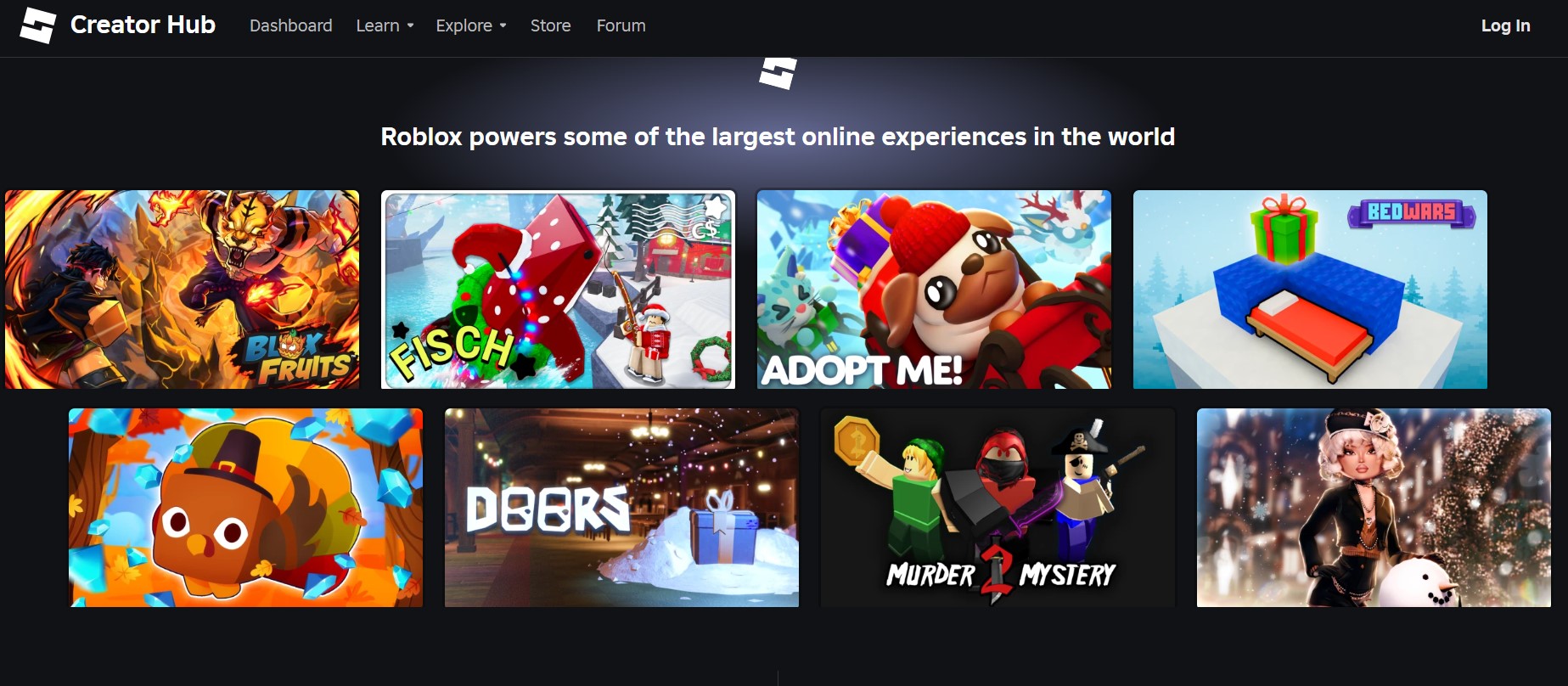
You know that feeling when you open up a new piece of software and just stare at the screen? Yeah, we’ve all been there. It’s like looking at the cockpit of a plane when you’ve only ever driven a go-kart. But if you are serious about making games on Roblox – whether you want to build the next Adopt Me! or just a cool hangout for your friends – you have to get comfortable with the tools. And the biggest tool in your belt? The Roblox creator hub.
It isn’t just a website. It’s basically the brain of your entire operation. It’s where you go when your script breaks, when you need to figure out how to make a GUI button actually do something, or when you want to see if your game is making any money.
Honestly, a lot of new devs skip over it. They jump straight into Roblox Studio, start placing blocks, and then get frustrated when they can’t script a door to open. Don’t be that guy. The Hub is where the real magic happens, or at least where you learn how to perform the magic without setting your virtual house on fire.
It’s More Than Just a Wiki
Back in the day, we had the Wiki. It was… okay. It got the job done. But the Roblox creator hub is a different beast. It’s a mix of documentation, tutorials, API references, and your personal dashboard for managing experiences.
Think of it like this: Roblox Studio is your workshop where you hammer the wood and paint the walls. The Creator Hub is the library, the accountant’s office, and the blueprint archive all rolled into one. You can’t really master one without the other.
If you’re coming from other engines like Unity or Godot, you’ll find the layout somewhat familiar but with that specific Roblox quirkiness. It’s designed to be accessible for kids, but deep enough for professional teams making millions of Robux.
The Dashboard: Where Your Games Live
Let’s talk about the Dashboard first. This is usually the first thing you see when you log in to create. It’s not the sexiest part of the job, but it’s crucial.
This is where you manage your “Experiences” (that’s Roblox speak for games). You can see everything you’ve created, from that weird test place you made three years ago to your current project:
- Configuring Places: You can change the name, description, and privacy settings here. You know, basic admin stuff.
- Access Management: If you’re working with a team, this is where you add them. You don’t want to give your little cousin full edit access unless you want your map turned into a giant crater.
- Localization: This is huge. If you want players from Brazil or Germany to play your game, you manage translations here.
The Dashboard is straightforward. It’s clean, dark mode (thank goodness), and usually loads pretty fast.
Why the Roblox Creator Hub Is a Dev’s Best Friend?
Okay, let’s get into the meat of it. Why do I keep saying “best friend”? Because it saves you from looking stupid. When you are scripting in Luau (Roblox’s version of Lua), you are going to hit a wall. You will forget what arguments a function takes. You will forget if it’s FindFirstChild or WaitForChild (spoiler: use WaitForChild if the object might not be there yet).
The Roblox creator hub holds the Engine API Reference. This is the bible of Roblox development. Every Class, Enum, Event, and Function is listed here. Here is what makes it good:
- Code Samples: almost every entry has a little snippet of code showing you how to use it. You can literally copy-paste these (I won’t tell anyone) and tweak them.
- Deprecation Warnings: It tells you if a feature is old and shouldn’t be used anymore. This saves you from building a whole system on code that might break next year.
- Inheritance: It shows you what class an object inherits from. This is techy, but super important for understanding how things interact.
If you have a second monitor, keep the API reference open on it. If you don’t, Alt-Tab is your best friend.
A Look at the Learning Resources
Maybe you aren’t a coder yet. Maybe you are just an idea guy who wants to learn. The Hub has a “Learn” section that is surprisingly good. It’s not just dry text. They have full-on courses. We are talking “Intro to Coding” or “Building a Battle Royale.” These aren’t just 5-minute videos; they are written guides that walk you through step-by-step.
| Resource Type | Best For… | Difficulty Level |
| Quick Start Guides | Getting your first game published in an hour. | Beginner |
| Core Curriculum | Learning the fundamentals of the Luau and Studio interface. | Intermediate |
| API Reference | Debugging specific scripts and looking up functions. | Advanced |
| Visual Styling | Learning lighting, terrain, and atmosphere settings. | All Levels |
The cool thing is they update these. When Roblox adds a new feature, like the new Shorelines for terrain or Audio API changes, the docs usually get a refresh.
Navigating the Roblox Creator Hub Tutorials
Finding what you need can sometimes be a bit of a treasure hunt. The search bar is… decent. It works most of the time. But knowing the structure helps. The tutorials in the Roblox creator hub are split by category. You have Scripting, Building, UI, Animation, and Audio.
Scripting Tutorials
These are the most popular. You start with “Hello World” (classic) and move up to DataStores. DataStores are scary at first – that’s how you save player data like gold or XP. If you mess this up, players lose their progress and they will rage at you. The tutorial on the Hub handles it well, showing you how to use pcall (protected call) to make sure your game doesn’t crash if the servers glitch.
Building and Modeling
Roblox isn’t just blocks anymore. You can import meshes from Blender. The Hub has guides on how to rig custom characters. If you want to make a game where everyone plays as a walking hotdog, the “Skinned Meshes” tutorial is where you look.
UI Design
Please, for the love of gaming, read the UI guides. Bad UI kills games. The Hub explains how to use “Scale” instead of “Offset” so your buttons look good on both a massive PC monitor and a tiny iPhone screen.
Community and DevForum Integration
You can’t talk about the Hub without mentioning the DevForum. While they are technically separate, they are joined at the hip. The Roblox creator hub often links out to the forum for complex discussions. The Forum is where the real trench warfare happens. It’s where devs complain about bugs, share open-source modules, and hire people. If the documentation is the textbook, the Forum is the study group where everyone is panic-eating pizza before the exam:
- Scripting Support: Post your broken code, and usually, within an hour, someone will tell you why it’s wrong.
- Resources: People post free models and plugins.
- Updates: Roblox staff post announcements here.
Monetization: Getting Paid
We all do it for the passion, right? sure. But Robux are nice too. The Hub manages your payouts. To make money, you sell Game Passes (like a “VIP sword”) or Developer Products (consumables like “Health Potion”). You set these up in the Dashboard, but you track the sales in the Analytics section of the Roblox creator hub.
There is also “Premium Payouts.” This is passive income. If a player with Roblox Premium spends time in your game, you get a slice of the pie. You don’t have to sell them anything; just keep them entertained. The Hub shows you exactly how much engagement you are getting from Premium users.
| Method | Setup Difficulty | Potential |
| Game Passes | Easy | High (One-time purchase) |
| Dev Products | Medium (Requires scripting) | Very High (Repeat purchase) |
| Premium Payouts | None (Automatic) | Moderate (Steady trickle) |
| UGC Items | Hard (Requires acceptance) | High (Marketplace sales) |
The Future of the Roblox Creator Hub
Roblox is pushing “Generative AI” hard right now. They are integrating AI coding assistants and material generators. You will start seeing more of this in the Roblox creator hub. Documentation might get dynamic, where an AI explains the code to you based on your specific problem. They are also pushing for more social features for devs, trying to make it easier to find teams.
Common Pitfalls for Newbies
Look, I’ve messed up plenty of projects. Here is what usually goes wrong when you ignore the Hub:
- Reinventing the Wheel: You try to write a complex physics system from scratch, not realizing Roblox already has constraints and movers documented in the Hub.
- Security Holes: You trust the client. Never trust the client. A hacker can change anything on their PC. The Hub has a whole section on “FilteringEnabled” (now just standard replication) and server-side security. Read it.
- Performance Issues: You use too many unanchored parts or heavy textures. The Hub has a “Performance Optimization” guide. It tells you to use MeshParts and limit transparency.
Tools You Need Alongside the Hub
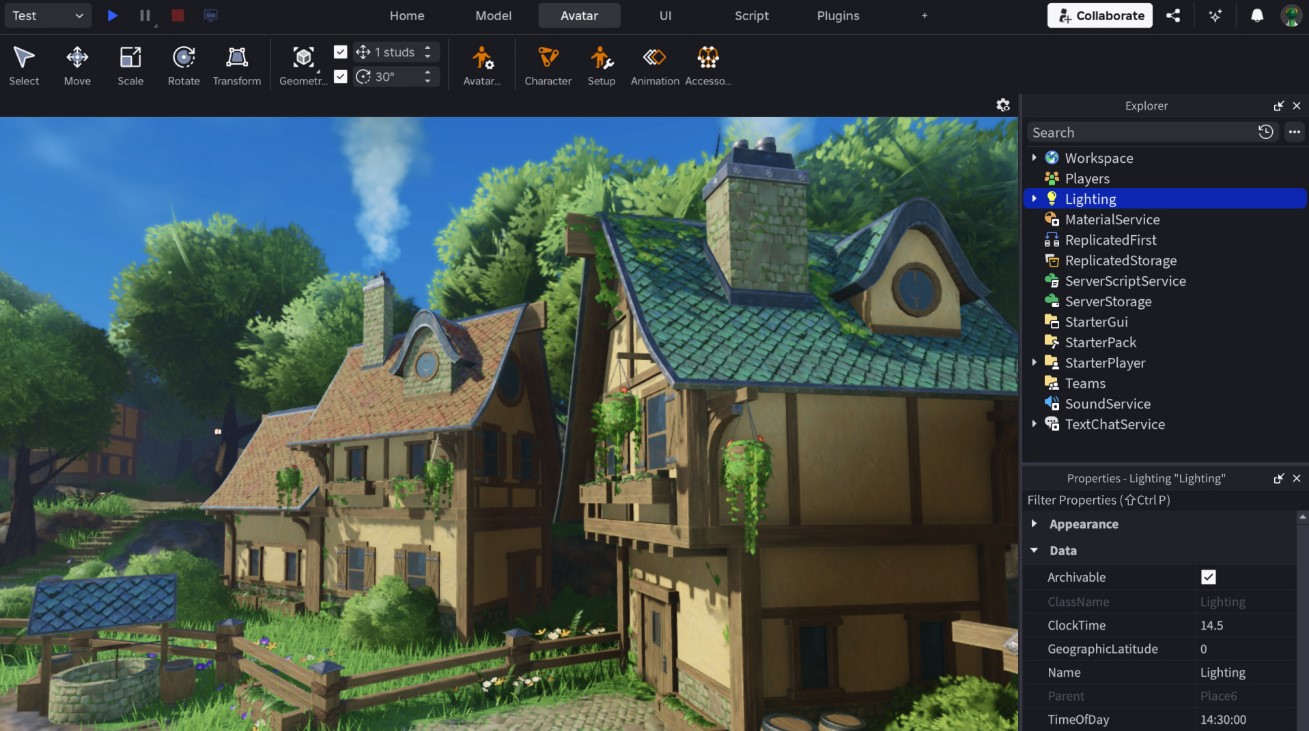
The Roblox creator hub is great, but it’s not the only thing you need:
- Roblox Studio: Obviously.
- Blender: For 3D modeling. Studio’s building tools are okay, but Blender is pro-tier.
- Paint.net / Photoshop: For UI and textures.
- VS Code (Optional): Some people prefer writing code in VS Code and using a plugin like Rojo to sync it to Roblox. The Hub actually has info on setting up Rojo!
FAQ
Is the Roblox creator hub free to use?
Yes, it is completely free for everyone. You just need a Roblox account.
Can I learn to code from scratch on the Hub?
Absolutely. The “Learn” section starts with the absolute basics of variables and loops.
Where do I find my game ID?
Go to the Dashboard in the Hub, click the three dots on your experience, and select “Copy Universe ID.”
Does the Hub help with marketing?
Sort of. It shows you the analytics of your ads (Sponsored Experiences), but you create the ads on the main Roblox site.
What is the difference between the Wiki and the Hub?
The Wiki is dead. The Hub replaced it. It contains all the old info plus new tools and dashboards.
Can I use the Hub on mobile?
You can access the dashboard and read docs on your phone, but you can’t use Roblox Studio (yet).
Why is my game not showing up in the Dashboard?
Make sure you are logged into the correct account. If it’s a Group game, select the Group from the dropdown menu in the top left.
Final Thoughts
The Roblox creator hub is your map in the wilderness of game development. It’s not always perfect – sometimes links are broken, sometimes the wording is confusing – but it’s the best resource you have.
Don’t just visit it when you are stuck. Browse it when you are bored. Read about “Raycasting” just to see how it works. Read about “Memory Management.” The more you soak in, the better your games will be. So, stop banging your head against the wall trying to guess why your script isn’t working. Go to the Hub. The answer is probably there.
P.S. If you enjoyed reading this post, please support the T-Minus Studio’s team by sharing this post online across social media. Write us if you seek collaboration of any sort.