

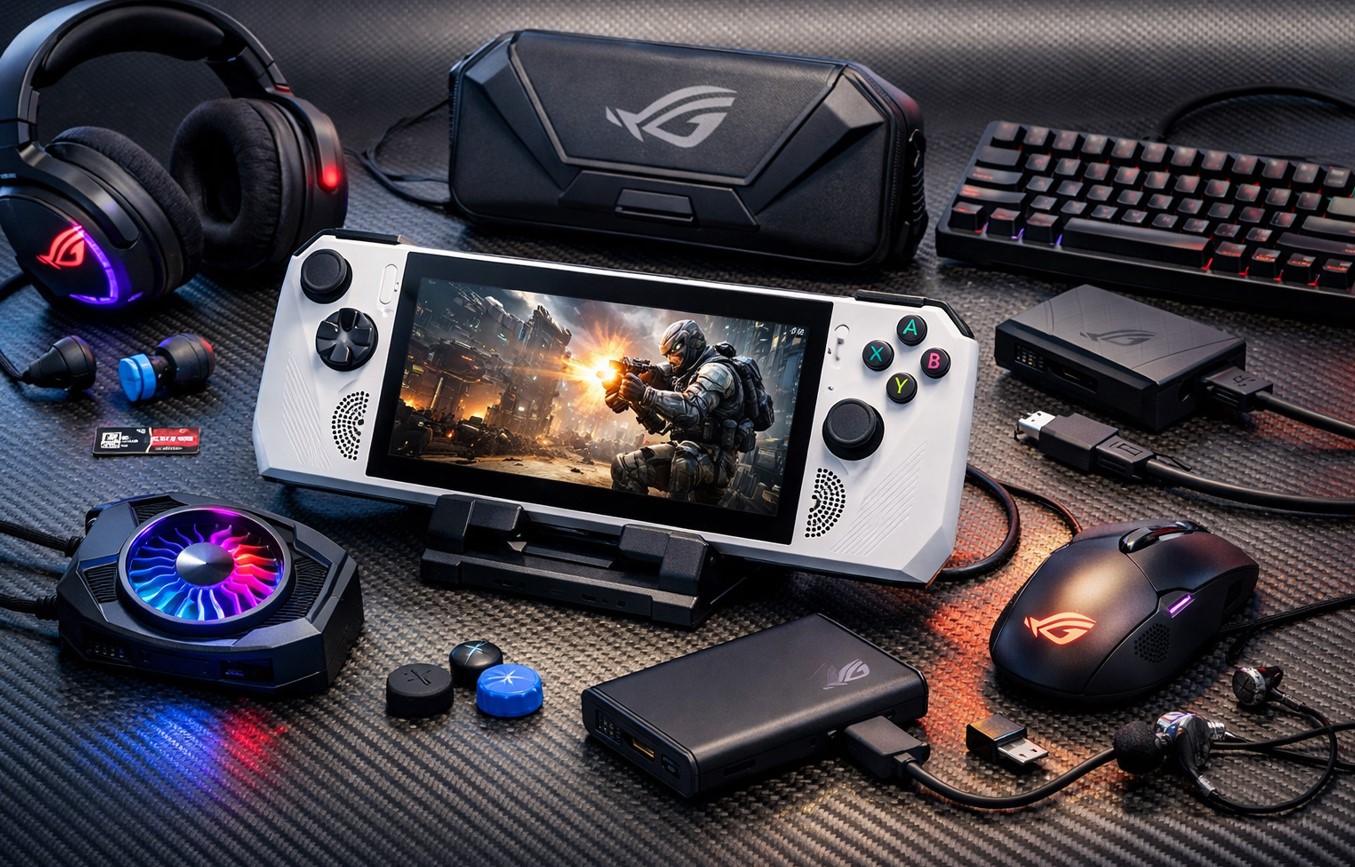
Best Asus ROG Ally Accessories Every Owner Should Consider
So you grabbed yourself an Asus ROG Ally. Smart move. But here’s the thing – right out of the box, you’re only getting part of the experience. Yeah, the handheld itself is pretty solid, but without the right gear backing it up, you’re leaving performance and convenience on the table. And honestly? The accessory market for this thing has exploded since launch. Some stuff is genuinely useful. Other products are just cash grabs hoping you’ll impulse buy. Let me help you sort through the noise. That is why we decided to review some of the best Asus ROG Ally accessories you may get in 2026.
Why Does Your ROG Ally Need More Than Just Games?
Think about how you actually game on this device. You’re not always sitting at a desk with perfect lighting and a charging cable nearby, right? Maybe you’re grinding through Baldur’s Gate 3 on a flight. Or perhaps you’re docked at home, pushing frames on your monitor while the Ally pulls double duty as a mini PC.
Different situations need different solutions. That’s where accessories come in – they bridge the gap between what the Ally can do and what you actually need it to do.
The stock experience works fine for casual sessions. But if you’re serious about portable gaming (and let’s be real, you dropped $600+ on this thing, so you probably are), you’ll want to enhance durability, expand functionality, and maybe add some comfort tweaks.
Asus ROG Ally Accessories – Protective Cases That Actually Protect
First things first – protection. The ROG Ally isn’t exactly fragile, but it’s also not a Nokia brick phone from 2005. Drop it wrong and you’re looking at expensive repairs or a paperweight.
Hard shell cases are your friend here. Not those flimsy neoprene sleeves that barely stop a light breeze. I’m talking about cases with rigid exteriors, proper padding inside, and enough room for cables and maybe a power bank.
The official Asus travel case isn’t bad. It fits the device snugly, has decent shock absorption, and won’t break the bank. But third-party options like the Tomtoc case offer more storage compartments if you haul around extra accessories.
Here’s what matters in a protective case:
- Impact resistance that can handle accidental drops from waist height
- Interior lining that won’t scratch the screen or housing
- Enough space for your charger and maybe earbuds
- A design that doesn’t add ridiculous bulk to your bag
Some cases come with stands built in. Sounds cool, but honestly? They’re usually wobbly and not worth the trade-off in protection quality.
Screen Protection – Because Fingerprints Are Annoying
You know what drives me nuts? Smudges. Everywhere. The ROG Ally’s 7-inch touchscreen is a fingerprint magnet, and after a few gaming sessions, it looks like a crime scene.
Tempered glass screen protectors solve this. They’re cheap, easy to install (mostly), and they add scratch resistance. Plus, if you do manage to damage the screen somehow, you’re replacing a $10 protector instead of the entire display.
Application can be tricky, though. Air bubbles are the enemy. My advice? Do it in a bathroom right after a hot shower – the steam settles dust particles and gives you a cleaner environment to work in.
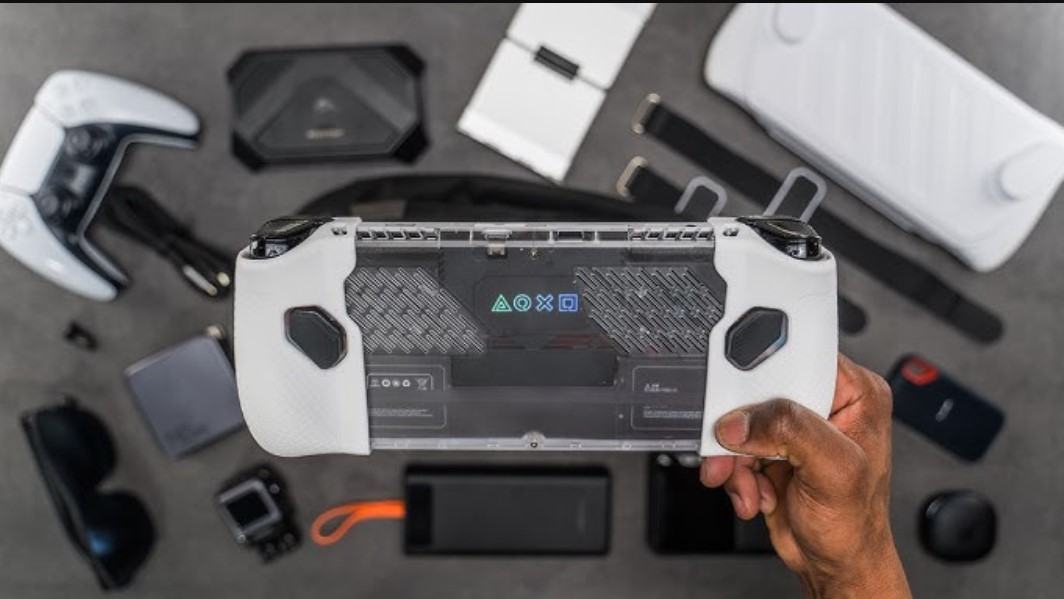
Matte protectors versus glossy is a personal call. Matte cuts glare but can make colors look slightly washed out. Glossy keeps visuals crisp but you’ll see every reflection under the sun. I lean glossy, but your mileage may vary based on where you game most.
Power Solutions for Marathon Sessions
Battery life on the Ally ROG Ally is… well, it exists. You’ll get maybe 90 minutes to two hours playing AAA titles at high settings. Indie games or older stuff? You might stretch it to four hours. But let’s not pretend this thing lasts all day.
Power banks are mandatory if you travel. Look for 65W+ USB-C PD (Power Delivery) models. Anything less won’t charge while you’re actively gaming – it’ll just slow the battery drain.
| Power Bank Model | Capacity | Wattage | Estimated Extra Playtime |
|---|---|---|---|
| Anker 737 | 24,000mAh | 140W | 4-5 hours (AAA games) |
| UGREEN 145W | 25,000mAh | 145W | 4-6 hours (AAA games) |
| Baseus 100W | 20,000mAh | 100W | 3-4 hours (AAA games) |
The Anker 737 is overkill for just the Ally, but if you’ve got other devices (laptop, tablet, phone), it’s a solid investment. The UGREEN is slightly cheaper and performs almost identically.
Charging cables matter too. The stock cable works fine, but it’s kinda short. Grab a 6-foot or 10-foot braided USB-C cable rated for at least 100W. Gives you way more flexibility in how you position yourself while gaming plugged in.
Docking Stations – Your Desktop Gaming Setup
Here’s where things get interesting. The Asus ROG Ally can legitimately replace a budget gaming PC if you dock it properly. Asus makes an official dock, but honestly? It’s overpriced for what you get.
Third-party docks offer better value. You want something with:
- HDMI 2.0 or better (for external monitor support)
- Multiple USB-A ports (for controllers, keyboard, mouse)
- Ethernet port (because WiFi can be unstable during gaming)
- USB-C PD passthrough (to keep the Ally charged while docked)
The JSaux dock gets recommended a lot in the ROG Ally community. It’s compact, has all the essential ports, and costs about half what the official dock runs.
When you’re docked, you can push the Ally harder since it’s not relying on battery. Crank those graphics settings. Connect a mechanical keyboard and a proper mouse. Hook up to a 1440p monitor. Suddenly, you’ve got a full gaming rig that fits in a backpack.
But there’s a catch – and there’s always a catch – thermal management becomes more critical when docked. You’re pushing more power through a small form factor. Which brings me to…
Asus ROG Ally Accessories – Cooling Solutions That Might Actually Help
The ROG Ally has internal cooling, but it’s working overtime during intense sessions. External cooling accessories exist, though results are mixed.
Those clip-on fans you see advertised? Most are gimmicks. They’re loud, drain battery, and barely impact temps. You’re better off just taking breaks every hour or so to let the system cool naturally.
What does help: a simple laptop cooling pad when you’re playing at a desk. Not because of the fans (though they don’t hurt), but because elevating the device improves airflow around it. Better circulation means cooler components and less thermal throttling.
If you’re seriously concerned about heat, consider undervolting through software tweaks rather than buying external cooling gear. It’s more effective and costs nothing.
Storage Expansion – Because Games Are Huge Now
The ROG Ally comes with either 512GB or 1TB internal storage, depending on the model. Sounds like a lot until you remember that modern games can hit 100GB+ each.
MicroSD cards are the obvious solution. Samsung’s EVO Select and SanDisk’s Extreme cards both work well. Aim for at least 512GB, preferably 1TB if you can swing the cost.
| MicroSD Card | Capacity | Read Speed | Approximate Cost |
|---|---|---|---|
| Samsung EVO Select | 512GB | Up to 130MB/s | $40-50 |
| SanDisk Extreme | 512GB | Up to 190MB/s | $50-60 |
| Samsung PRO Plus | 1TB | Up to 180MB/s | $90-110 |
Read speeds matter for load times, but honestly, anything above 100MB/s is fine for most games. Don’t stress about getting the absolute fastest card unless you’re running something that streams assets constantly.
Installation is dead simple – pop the card in the slot, format it, and you’re good. The Ally treats it as extended storage automatically.
Controllers and Gaming Peripherals
The built-in controls are solid, but some games just play better with a full-size controller. Xbox controllers pair via Bluetooth without any fuss. PlayStation controllers work too, but you might need to mess with Steam Input settings.
For fighting games or anything precision-heavy, an arcade stick connected through the dock transforms the experience. The 8BitDo Arcade Stick works beautifully and doesn’t require special drivers.
Keyboards and mice are obviously useful when docked. Nothing fancy needed – any standard USB peripherals work fine. I keep a cheap wireless combo in my bag for when I want to actually type something longer than a few words.
Audio Gear Worth Considering
The ROG Ally’s built-in speakers are… okay. They do the job for casual stuff, but they’re not blowing anyone away. For serious gaming, you’ll want headphones or earbuds.
Bluetooth works, but there’s latency. It’s noticeable in competitive shooters or rhythm games. Wired connections eliminate that lag entirely. Any standard 3.5mm headphones plug right into the headphone jack.
If you’re going wireless anyway, something like the SteelSeries Arctis Nova 7 offers low-latency wireless through its own dongle. Pairs instantly, sounds great, battery lasts forever.
Earbuds are better for portability, though. Nothing worse than having big over-ear cans taking up space in your bag. The Sony WF-1000XM5 earbuds have excellent noise cancellation and sound quality, though they’re pricey. Budget option? Anker Soundcore Liberty series gets the job done for way less cash.
Stands and Grips for Comfort
Holding the Ally gets uncomfortable after extended sessions. It’s not particularly heavy, but the weight distribution can cause hand fatigue.
Ergonomic grips snap onto the back and give you better purchase. Stuff like the Satisfye grip or SkullnCo cases add bulk but significantly improves comfort during long gaming marathons.
For tabletop mode, a simple adjustable stand lets you prop the Ally up at comfortable viewing angles. The official Asus stand is fine, but any tablet stand from Amazon works just as well for a fraction of the cost.
Some stands have built-in charging cable management, which is actually useful. Keeps things tidy and prevents you from yanking the cable out mid-game because it got tangled in something.
Miscellaneous Stuff That’s Genuinely Useful
Microfiber cleaning cloths. Seriously. Keep one in your case and wipe down the screen regularly. Takes five seconds and keeps everything looking fresh.
Replacement thumbstick grips are cheap insurance. The stock ones will wear down eventually with heavy use. Having spares means you’re not scrambling when they start getting slippery.
Cable organizers or small pouches help wrangle all the accessories. Otherwise, you’re fishing through your bag trying to find that one specific cable that’s somehow tangled around everything else.
A good quality USB hub can expand your docking options significantly. Look for powered hubs, so you’re not drawing everything from the Ally’s single port.
What You Probably Don’t Need To Look For in Asus ROG Ally Accessories?
Let’s talk about what’s not worth buying. Those RGB light strips that attach to the case? Pure aesthetic. They look cool for about a day, then you realize they drain battery and serve no purpose.
Fancy skins and decals won’t protect anything. They’re decoration, which is fine if that’s your thing, but don’t convince yourself you’re adding protection.
Ultra-premium carrying cases that cost more than the accessories inside them. Diminishing returns hit hard at the high end. A $40 case protects just as well as a $120 case in most scenarios.
Building Your Accessory Kit From Scratch
If you’re just starting out, here’s a reasonable starter pack:
- Protective hard shell case
- Tempered glass screen protector
- 512GB or larger microSD card
- 65W+ power bank for travel
- Basic cleaning cloth
That covers the essentials without breaking the bank. Total cost runs maybe $150-200, depending on brands.
As you figure out how you actually use the Ally, add from there. Traveling a lot? Invest in better audio. Gaming at home mostly? Get a quality dock and peripherals. It’s all about tailoring to your specific use case.
FAQ
Can I use my old Steam Deck accessories with the ROG Ally?
Some work, some don’t. Cases are hit or miss due to size differences. Screen protectors definitely won’t fit – the Ally’s screen is 7 inches versus the Deck’s 7-inch, but has a different aspect ratio. Power banks and docks should work fine since they’re using standard USB-C connections.
Do I really need a screen protector if I’m careful?
Honestly, yeah. It’s cheap insurance and takes literally two minutes to install. Even if you’re super careful, accidents happen. Keys in the same bag pocket, setting it down on a rough surface, just general wear over time – a protector handles all that.
What’s the best power bank wattage for gaming on the go?
Minimum 65W if you want to actually charge while playing demanding games. Anything less will just slow the battery drain. 100W+ is ideal and gives you headroom for other devices, too.
Are third-party docks safe for the ROG Ally?
Generally, yes, as long as you’re buying from reputable brands. Stick with known names like JSaux, Anker, or UGREEN. Avoid super cheap, no-name Amazon brands that might have sketchy power delivery.
How much storage should I get in a microSD card?
512GB is the sweet spot for most people. 1TB if you install a ton of games simultaneously. Anything smaller than 512GB fills up too fast with modern game sizes.
Will a cooling pad actually improve performance?
Maybe slightly, but don’t expect miracles. The internal cooling is already pretty good. A cooling pad helps more with comfort (cooler device to hold) than raw performance gains.
What accessories should I buy first?
Start with protection – case and screen protector. Then storage expansion if you need it. Everything else depends on how you use the device, so hold off until you know what you actually need.
The Real Value Proposition
Here’s the bottom line – Asus ROG Ally accessories aren’t just about protecting your investment or adding features. They’re about removing friction from your gaming experience.
Every time you have to stop playing because the battery died, or you’re squinting at a smudged screen, or your hands are cramping up – that’s friction. The right accessories eliminate those pain points so you can just focus on actually gaming.
The device itself is capable of incredible performance. But capability means nothing if practical limitations keep getting in your way. Accessories bridge that gap between theoretical performance and real-world usability.